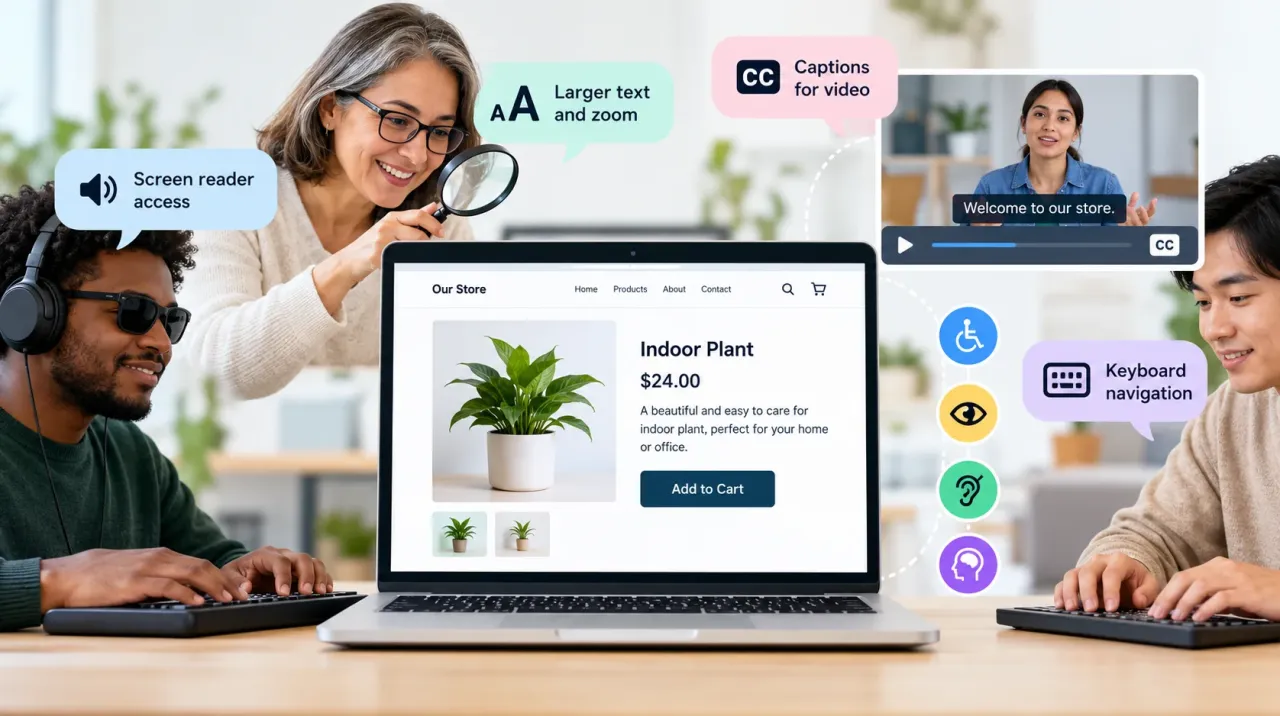
People visit websites to learn, compare options, and get things done, so the experience should work for visitors with different needs and abilities. But not every visitor interacts with a website in the same way. Some people use screen readers to understand page content, some navigate with a keyboard, and others need larger text, captions, or stronger color contrast.
When a website ignores these differences, even a simple task can become frustrating. A customer may be unable to submit an inquiry because the form does not announce errors. A visitor with low vision may struggle to read pale text against a white background. Someone using a keyboard may become trapped inside a menu that cannot be closed easily.
These barriers can prevent visitors from completing everyday tasks, such as sending an inquiry, choosing a product, or navigating to important information.
An accessible website allows people to understand its content and use its features through different input methods, display settings, and assistive technologies. It is not simply a technical requirement or a final design adjustment. This approach allows more people to access a site's information and use its features in ways that suit their needs.
This guide explains the principles of accessible web design, common barriers, practical testing methods, and ways businesses can improve accessibility as their websites evolve.
What Is Website Accessibility?
Website accessibility is the practice of making websites usable by people with a broad range of abilities, including people with visual, hearing, motor, and cognitive disabilities. It also considers the tools people use to access information, such as screen readers, keyboard navigation, speech recognition software, and browser zoom.
Consider an online store with a product image, a price, and an “Add to Cart” button. A sighted visitor may understand the page immediately. A screen-reader user, however, needs meaningful image descriptions, understandable product information, and a button whose purpose is announced correctly. A keyboard user must also be able to reach and activate that button without a mouse.
If any of these interactions fail, the product may be visible on the screen but effectively unavailable to some visitors.
Accessibility addresses this gap between how a website looks and how it works for different people. It combines thoughtful design, semantic HTML, reliable interaction patterns, useful content, and testing with different ways of browsing.
Why Website Accessibility Matters for Businesses
For many companies, the website is where potential customers first explore what the business offers, compare products or services, and decide whether to get in touch. When important features are difficult to operate, people may leave without completing their intended task.
For example, imagine a potential customer visiting a web development company's contact page. The visitor fills out the form but misses a required field. If the page displays only a red border and does not explain which field needs attention, the problem may be difficult to identify. A clear error message connected to the relevant field makes the form easier to understand and correct.
Accessibility improvements can benefit a wider range of visitors, including someone watching a video without sound, enlarging text on a phone, or navigating a page without a mouse. Captions help visitors watching videos in noisy places. Clear headings help people scan long articles. Menus that behave consistently make it easier for first-time visitors to find their way around a site. Text that remains readable when enlarged supports people browsing on smaller screens.
Businesses should also consider the legal requirements that apply to their location, industry, and services. Accessibility obligations vary by jurisdiction, so a general website review should not be treated as proof of legal compliance.
Above all, accessibility is about removing unnecessary barriers. A website should not make someone work harder simply because they use a different input method or need information presented in another way.
Businesses can also explore ways to improve website conversion rates by making important website actions easier for visitors to understand and complete.
Understanding the WCAG Accessibility Guidelines
Published by the World Wide Web Consortium (W3C), WCAG sets out testable requirements that help website teams assess how accessible their pages and digital features are.
The framework uses four core principles—perceivable, operable, understandable, and robust—to describe what people need in order to access and use web content.
Perceivable
Visitors need to be able to access information through the senses available to them. This may involve describing informative images in text, providing captions for spoken video content, and making foreground text easy to distinguish from its background. Information should not depend solely on color, sound, or another single sensory cue.
Operable
People must be able to navigate and interact with website controls. Keyboard users should be able to reach links, buttons, menus, and forms. Interactive elements should have visible focus indicators, and controls should not require movements that some users cannot perform.
Understandable
Content and interface behavior should be clear and predictable. Instructions should explain what users need to do, form errors should identify the problem, and navigation should behave consistently across pages.
Robust
Content should be built using reliable web standards so browsers and assistive technologies can interpret it correctly. Semantic HTML helps communicate whether an element is a heading, button, link, or form field.
WCAG 2.2 is a useful reference for modern accessibility work. The appropriate conformance level depends on the organization's goals and applicable requirements. Read the official WCAG 2.2 guidelines for the detailed success criteria.
Common Website Accessibility Problems
Many accessibility barriers arise from decisions that seem harmless during design or development. Their impact becomes clearer when a visitor tries to complete a real task.
Poor Color Contrast
Light gray text on a white background may look minimal and modern, but it can be difficult to read for people with low vision. Designers should measure contrast with an appropriate tool instead of judging readability by appearance alone. WCAG 2.2 specifies contrast thresholds for different types of text and interface content.
Color should not be the only way to communicate information. If a form identifies an error only by turning a field red, some users may not recognize what went wrong. A text message such as “Enter a valid email address” provides additional information.
Missing or Unhelpful Image Alternatives
Screen readers may announce alternative text when users encounter meaningful images. If a product photograph communicates a feature that is not described elsewhere, missing or vague alternative text can leave users without that information.
Alternative text should communicate the useful information an image contributes to the page. For example, a product image may need to identify a feature that is not explained in the nearby text, while a purely decorative image can usually use an empty alt attribute. For instance, if an image demonstrates the location of a product's connection ports, its alternative text should communicate that useful detail. A decorative image that adds no information can usually be given an empty alternative text value so it does not create unnecessary announcements.
Keyboard Navigation Failures
Some visitors cannot use a mouse and depend on keyboard navigation. They need to move between interactive controls, see which element has focus, and activate features without becoming stuck.
Custom dropdowns and popups deserve particular attention. A menu might open when clicked but fail to respond to keyboard commands. A dialog might open correctly but leave keyboard focus behind it, allowing users to interact with the wrong part of the page.
To uncover these problems, navigate the page using only Tab, Shift+Tab, Enter, Space, and Escape where appropriate. Check that focus remains visible, menus respond correctly, and users can leave dialogs without getting stuck.
Confusing Forms and Error Messages
Forms are essential to many business websites, yet small design decisions can make them difficult to complete. Visitors may struggle to complete a form when input fields are poorly identified, mandatory information is not explained, or error messages fail to tell them what needs correcting.
Each form field should have a clear label, required information should be explained before submission, and error messages should identify the affected field and describe how to correct the problem. After a failed submission, it should help users find and correct the problem without unnecessarily losing the information they already entered.
Inaccessible Video and Audio
A video without captions may prevent a person who is deaf or hard of hearing from following spoken information. A transcript can make audio content easier to access and search. When important visual information is not explained in the audio, captions alone may not communicate everything the viewer needs.
Businesses should consider these requirements when publishing product demonstrations, tutorials, promotional videos, and other multimedia content.
How to Make a Website More Accessible
Website accessibility should be addressed from the initial planning stage and reviewed again whenever the site is updated. Designers, developers, and content writers each influence whether people can use a page successfully.
Build a Clear Page Structure
Organize each page so readers can quickly identify its main topic and move between sections. Use one clear primary heading and arrange supporting headings in a sensible order, with each heading describing the information that follows.
Semantic HTML is equally important. Developers should use buttons for actions, links for navigation, and appropriate form elements for user input. Using native HTML elements also helps browsers and assistive tools communicate each control's purpose and expected behavior.
For example, a clickable <div> that imitates a button may look correct but lack expected keyboard behavior or accessibility information. A properly implemented HTML button provides a more reliable starting point.
Support Keyboard Navigation
Test whether users can reach every important interactive element with the keyboard. The Tab key should move focus through controls in a logical order, while Shift+Tab should allow movement in the opposite direction.
Focus indicators must remain visible. Keyboard users need a clear visual indicator to track their position on the page and identify which interactive element will respond to their next action. Developers should also check that sticky headers, popups, and overlays do not hide the focused element.
Opening a dialog should place keyboard focus in the appropriate area, while closing it should return users to a sensible location on the page. Test these interactions with a keyboard to confirm that users can enter, navigate, and exit the dialog successfully.
Improve Typography and Contrast
Readable content needs suitable text sizing, comfortable line spacing, and clear separation between sections. Long paragraphs can be difficult to follow, so use headings and concise paragraphs to organize complex information.
Use a contrast checker to assess whether text remains distinguishable from its background. Then enlarge the page through browser zoom and text resizing to see whether content stays readable and controls remain available without overlapping or being clipped.
Make important states understandable without requiring users to recognize a particular color. Pair visual changes with clear messages, descriptive labels, or suitable symbols so visitors can identify errors and selected options more easily.
Write Useful Alternative Text
Alternative text should describe meaningful image information without unnecessary wording. A product image, process diagram, or informative chart may need a description that communicates its purpose. A decorative flourish usually does not need a spoken description.
Write image descriptions for the information a visitor needs, not to repeat search terms. Keep each description relevant to the image and page, and leave decorative images without unnecessary screen-reader announcements.
Make Forms Easier to Complete
Every input should have an identifiable label, and any special requirements should be explained before the user encounters an error. Error messages should state what needs to change and, when possible, how to correct it.
For example, “Please enter a valid phone number, including the area code” is more useful than “Invalid input.” When a form contains several errors, a summary at the top can help users understand how many fields need attention, provided that the errors are also associated with the relevant fields.
Review each form using keyboard controls and, when available, a screen reader to check whether fields, instructions, and error messages can be understood and operated correctly. A form that submits successfully with a mouse may still have missing labels or confusing focus behavior.
Accessibility Testing: A Practical Method
Automated testing can identify many common accessibility issues, but it cannot determine every aspect of a user's experience. Use automated tools to identify potential issues, then inspect the page manually to find interaction problems that software may not recognize.
Start with an important page, such as a contact form, service page, or product page. Run an accessibility checker to identify potential issues, then review the results rather than treating every automated warning as a confirmed failure.
Next, use the page with only a keyboard. Start at the beginning of the page and move through links, menus, form fields, and buttons. Check whether focus is visible, follows a sensible order, and can reach every important control. Try opening and closing any dialogs or dropdowns.
Then review the page with a screen reader if one is available. Check whether headings communicate the page structure, form controls have understandable names, and links explain their destinations. Confirm that important images provide useful descriptions instead of generic labels.
Finally, complete the main task the page is designed to support. On a contact page, try submitting the form with a required field missing and observe how the error is communicated. On a store page, try selecting a product option and reaching the cart without a mouse.
Record each issue found during testing, the page where it occurs, the task it affects, and the steps needed to reproduce it. This creates a practical record that developers can use to prioritize and verify fixes. Record the issues actually observed, note which user tasks are affected, and prioritize barriers that prevent people from accessing essential information or completing important actions.
The W3C provides further guidance on evaluating web accessibility. Automated reports should be combined with human evaluation, and testing should be repeated when major site changes introduce new components or functionality.
The Role of Developers and Designers
Accessibility is a shared responsibility. Designers influence typography, contrast, layout, and interaction patterns. Developers determine the structure and behavior of the interface. Content writers influence heading clarity, link descriptions, image alternatives, and instructions.
Accessibility reviews are more effective when designers, developers, and content writers agree on requirements before development begins and revisit them during testing and later updates. A design review can identify low contrast before implementation. A developer can select a semantic component instead of creating a custom control that requires extra keyboard support. A content editor can ensure that headings describe their sections and that instructions use plain language.
Businesses planning a new website should include accessibility in their requirements and review process. Owners of existing websites can begin by identifying the most important pages and user journeys, then prioritizing the barriers that affect them.
Organizations considering professional development support can explore DK TechnoLab's web development services. Any accessibility work should be defined clearly within the project scope, including the pages to be reviewed, testing methods, and expected deliverables. A general web development service should not automatically be assumed to include a complete accessibility audit.
Organizations considering professional development support can explore DK TechnoLab's web development services to learn about website design and development options.
Website Accessibility and SEO
Accessibility and search engine optimization have different primary goals, but they share several useful practices. Descriptive headings help visitors scan content and help search engines understand its organization. Meaningful link text clarifies where a link leads. Appropriate alternative text communicates relevant image information to people using screen readers and may also help search engines interpret images.
Clear page structure and understandable content support a better experience for visitors. However, accessibility should not be treated as a shortcut to higher rankings. There is no guarantee that an accessibility improvement will directly increase a page's search position.
Focus first on helping visitors understand the content and complete their tasks. Accessible design can support a broader SEO strategy, but it cannot replace useful information, sound technical optimization, descriptive titles, and a functional mobile experience.
Common Accessibility Mistakes to Avoid
One common mistake is assuming that a website is accessible because it looks attractive and works with a mouse. Visual appearance does not show whether keyboard users can reach controls or whether screen readers can interpret the page.
Another mistake is relying exclusively on automated tools. A checker may detect missing labels, but it cannot always determine whether a label is helpful or whether a user can understand a complicated process. Manual testing remains essential.
Businesses should also avoid assuming that installing an accessibility widget or plugin automatically fixes the website. Such tools may provide useful options, but they cannot necessarily correct poor HTML structure, inaccessible custom controls, or confusing content.
Finally, accessibility should not be treated as a one-time project. A redesigned navigation menu, new form, plugin update, or fresh content can introduce barriers. Reviewing significant changes and addressing reported problems helps keep the website usable as it evolves.
Regular website maintenance helps businesses review website changes and address technical issues that may affect usability over time.
Conclusion
Website accessibility is an important part of creating an inclusive and effective digital experience. It helps people with different abilities navigate content, understand information, and complete tasks with greater independence. It can also make websites easier to use for visitors who rely on mobile devices, browser zoom, captions, or alternative input methods.
The most effective approach combines accessible page structure, keyboard-friendly interactions, readable content, meaningful image alternatives, and usable forms. Automated tools can help identify issues, but manual testing is necessary to understand how the website performs during real tasks.
Website accessibility should remain part of routine design, development, and maintenance. Reviewing important user journeys after updates helps teams identify barriers early and keep essential website features usable for people with different abilities.
Frequently asked questions

Written by the DkTechnoLab Team
Our Surat-based team of developers, designers and marketers has delivered 1250+ projects for 900+ clients since 2015. We write practical guides to help businesses make smarter technology decisions.
About us